
How to take meeting notes without a bot
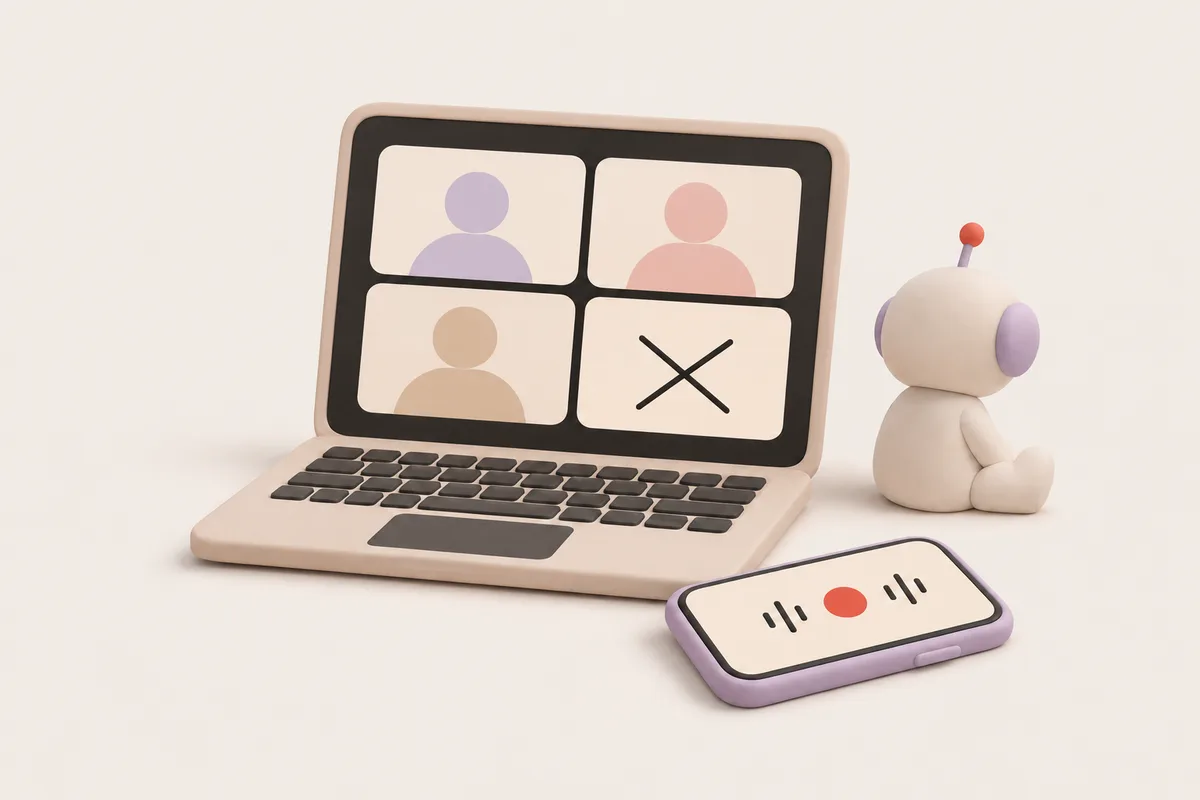
To take meeting notes without a bot, record from your own device instead of sending a separate account into the call. Your computer’s audio covers online calls, and your phone covers in-person meetings. Nobody new appears in the participant list or waits to be admitted. Telling people you’re recording is still on you.
What is a meeting bot?
A meeting bot is a virtual participant that a note-taking service sends into your call. It connects to your calendar, finds the meeting link, and joins at the start time like a person would. It sits in the participant list under a name like “Notetaker”, often with its own video tile, and records the call’s audio (sometimes video too) from the inside. When the meeting ends, it takes the recording back to its servers and transcribes it.
The idea makes sense. Nobody has to install anything, and the bot can go anywhere there’s a link. The trouble starts with how everyone else in the meeting reacts to this extra guest.
Why do meeting bots bother people?
It looks like someone nobody invited walked in. The tool is familiar to you and a stranger’s name to everyone else. A client or a candidate spends the first minute asking “who’s that?”, and you spend the second one explaining.
It gives the host extra work. If the call has a waiting room, someone has to admit the bot. If nobody does, it stays outside and you get no notes.
It can run into company rules. Some organizations don’t allow outside participants or unfamiliar apps in their meetings. When they host the call, your bot may not get in at all.
It changes the mood. Knowing a meeting is recorded isn’t a bad thing, and people should know. But a recording tile sitting in the corner of the screen makes some people choose their words more carefully, especially once a sensitive topic comes up.
It can show up where it shouldn’t. Some calendar-connected bots join every meeting by default. Forget to switch that off and one may appear in a one-on-one you never meant to record.
And in a meeting room it’s useless. There’s no link at an in-person meeting, so there’s no bot either.
How does recording from your own device work?
With bot-free recording, nothing joins the call. The recording comes from a device that’s already in the meeting: your computer or your phone. qatip has three ways to do this.
On your computer: Mac and Windows
When you’re on Zoom, Google Meet, Microsoft Teams or any other call app, qatip records your computer’s own audio. Your microphone and the other side’s voices both end up in the recording.
- Install qatip on your Mac or Windows PC.
- When a call starts, qatip notices and offers to record.
- Start the recording and carry on with your call. No one gets added to it.
- A few minutes after the call ends, the transcript and report are ready.
The Mac app does one more thing: it reads who’s speaking from the Zoom, Meet or Teams window and uses those names in the report. Slides shared on screen can go into the report too.
In your browser: the Chrome extension
If you join calls in the browser instead of an app, the Chrome extension is enough. It records Google Meet, Zoom and Microsoft Teams calls from inside the browser. In Meet it can also post a short note in the chat saying the meeting is being recorded, so someone who joins late sees it as well.
On your phone: in-person meetings
For a meeting around a table, put your phone in the middle and start recording. It keeps going with the screen locked, and you can pause or finish from the lock screen. Flag an important moment as it happens, or snap a photo of the whiteboard or a slide and add it to the recording. If the meeting is in your calendar, you get a reminder a minute before it starts.
Meeting bot vs. recording on your own device
| Meeting bot | Your own device | |
|---|---|---|
| How it gets into the call | Joins as a separate participant | Doesn’t join, runs on your device |
| Shows up in the participant list | Yes | No |
| Needs to be admitted from a waiting room | If there is one | No |
| Can be blocked by the other company’s rules | Yes | It never joins their call |
| Works in an in-person meeting | No | Yes, with your phone |
| Who tells people it’s recorded | Being visible works as a signal | You do |
That last row matters, and it’s what the next section is about.
If there’s no bot, should you still tell people?
Yes. With a bot on screen, everyone can at least guess something is being recorded. When you record on your own device, nothing may appear on their screen at all, so letting people know is entirely up to you. It’s also simple courtesy: people speak more freely when they know where their words end up.
In practice, what works is simple:
- At the start of the meeting, before you hit record, say it: “I’m recording so I don’t miss anything. Is everyone OK with that?”
- If anyone objects, don’t record. Take notes by hand instead.
- Share the report with the people who were there. Once they see what the recording is for, they tend to be more relaxed about it next time.
qatip reminds you before every recording, and in Meet the Chrome extension can post a note in the chat. Saying it out loud is still the job of whoever starts the recording.
What do you get after the meeting?
No bot doesn’t mean less output. A few minutes after the meeting, you have a transcript showing who said what, line by line. The report has a summary, decisions, to-dos with an owner and a date, and open questions. You can email it to everyone who was there in one click, or share a link that opens without an account. To-dos from every meeting collect in one list, and on iPhone you can add them to Reminders. Months later, you can ask a plain question across all your meetings and see which meeting and which moment the answer came from.
Your recordings are stored in the EU, in Frankfurt. Only you and the people you share with can see them, and they’re never used to train AI models. You also choose how long the audio is kept.
For online calls, the meeting recorder without a bot page shows the details. For meetings around a table, see the in-person meeting recorder page.
Questions
Can other people tell I'm recording if there's no bot?
Not on their own, because nobody new appears in the participant list. That's why you should tell them at the start. qatip reminds you to do this before every recording.
Does recording without a bot work on Zoom, Google Meet and Teams?
Yes. qatip's Mac and Windows apps record the computer's own audio, so it doesn't matter which app the call is in. If the call runs in your browser, the Chrome extension records Meet, Zoom and Teams from inside the browser.
Can I record regular phone calls this way?
No. qatip doesn't record regular phone calls or WhatsApp calls. The phone app is for in-person meetings around a table, and the computer app and Chrome extension are for online calls.